






The DCENT app now opens on a new Home screen. From now on, the first thing you see is what happened in the market today and which coins moved after the news came out.
The new Home puts our slogan, Beyond Storage, on the first screen of the app. Your wallet is where you hold and check your assets. Now it also helps you read the market around them.
One thing first: only the opening screen is different. Your coins and balances are in the My Wallet tab at the bottom, exactly as before.
At a glance
- The app now opens on Home instead of My Wallet.
- Your assets are in the My Wallet tab. Send and receive work the same way.
- Settings moved to the gear icon at the top left of Home.
- No app update is needed. The change is applied automatically.
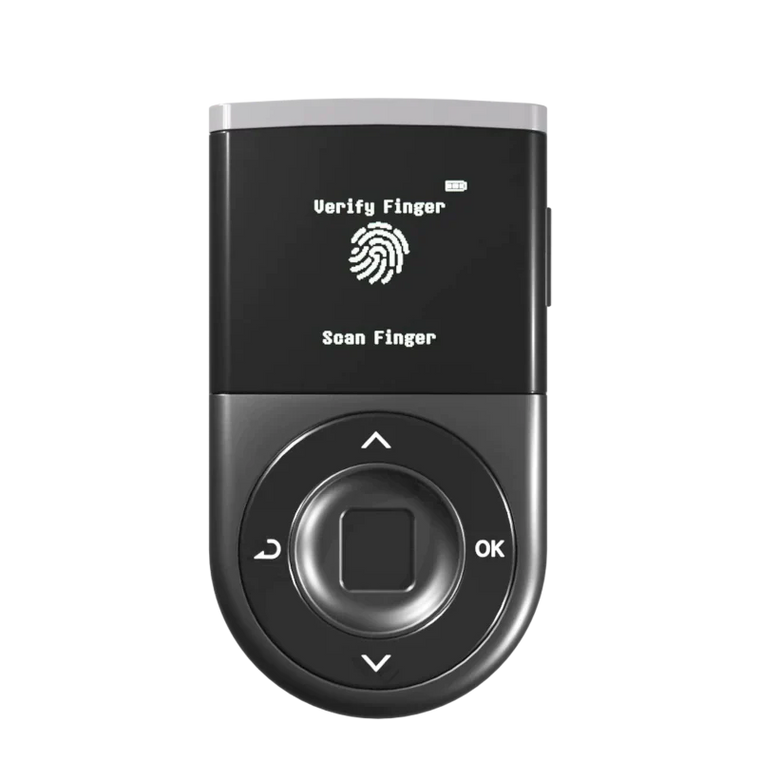
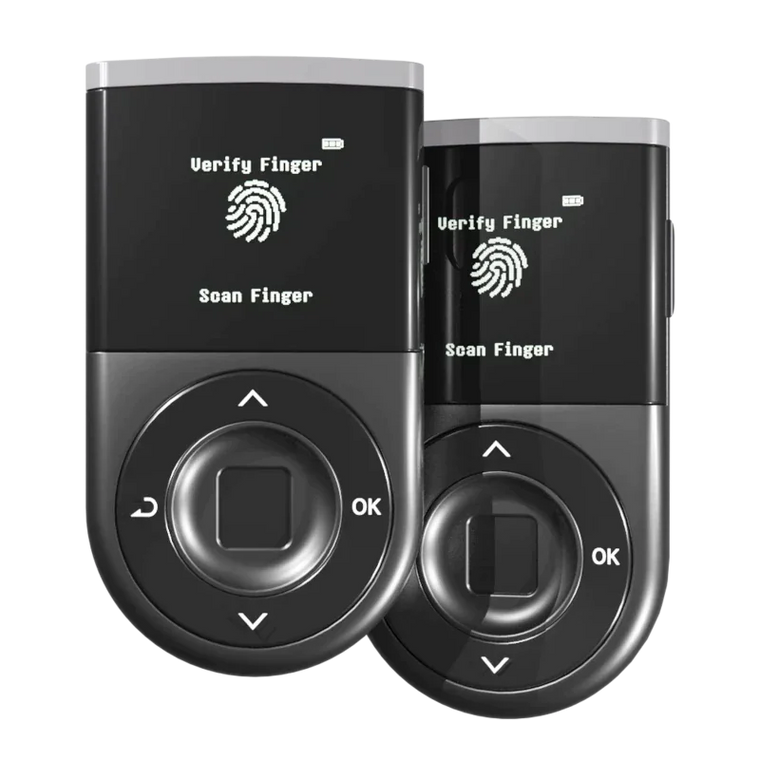
- The new Home is available on Biometric Wallet and Card Wallet.
Why we built the new Home
People open a wallet for more than a balance. As an investor, you want to know why your assets moved, what was behind a price change, and which narratives the market is following right now. Until now, the price was in your wallet and the news was somewhere else. The new Home puts both on the first screen of your wallet.
- Storage: Viewing, sending, and receiving your assets. All of this works in the My Wallet tab as before.
- Beyond: Reading the market around your assets. This is what the new Home is for.
The new Home is a screen for market information. The way you use your wallet stays the same.
What you'll find on the new Home

A price alone doesn't tell you why a coin went up or down. The new Home puts the news next to the price, so you can see both in one place. Scroll from top to bottom:
| Section | What it shows |
|---|---|
| Today's market | A few cards that sum up the day, grouped by topic such as fund flows, the economy, and risk. |
| Post-publication price moves | News stories paired with the coins that rose or fell together afterward, plus other coins in the same sector. |
| Most-covered issues | Stories reported by several outlets, merged into one item. You can see how many days the coverage has run. |
| Top movers | The biggest gainers and losers over the last 7 days, each with a one-line note on related news. |
| Sectors on the move | Sector performance in a single map. Larger tiles are larger coins. |
Detail screens for the market, issues, and coins

Cards and coins on Home lead to detail screens.
- Today's market summary: Tap the "Today's market" card. It brings together the overall market, the Fear & Greed Index (a 0–100 gauge of market sentiment), total market cap, and dates to watch.
- Issue detail: See how many outlets covered a story and for how long, and how related coins moved one hour after the report. "View articles" lists the original articles.
- Coin detail: The price chart marks the moments when news came out. You'll also find this week's news, a comparison with same-sector coins, and a short introduction to the coin.
The content on Home is reference information organized by AI from public news and prices. It is not investment advice. Coins that moved together reflect past prices only and do not predict or guarantee future prices. Errors or delays can occur in collection and interpretation, so please verify the information yourself before making any investment decision.
Where to find your assets and settings

The first time you open the new Home, a short three-step guide points out what moved. It appears once.
- Market news is on Home. It's the first tab at the bottom, and it's where the app opens.
- Your wallet is in My Wallet. It's the second tab. View your assets, and send and receive, as you always have.
- Settings are under the gear. The Settings tab at the bottom is gone. Tap the gear at the top left of Home for app settings such as language and notifications, along with your wallet settings.
The bottom tabs are now Home · My Wallet · Swap · Insight · Discovery.
For a full walkthrough of the settings screen and each menu, see the DCENT User Guide.
FAQ
I opened the app and don't see my assets. Is something wrong?
No. The app now opens on Home, so your balance isn't on the first screen. Tap the My Wallet tab at the bottom and your assets appear as before.
Where are the settings?
Tap the gear icon at the top left of Home. Wallet management, app security, language, and notifications are all there.
Do I need to update the app?
No. The new Home is applied automatically. If you don't see it yet, fully close the app and open it again.
Is the new Home available on every wallet?
The new Home is available on Biometric Wallet and Card Wallet.
Are the coins on Home recommended by DCENT?
No. Home organizes public news and price data for reference. It does not recommend buying or selling any coin.
More to come, beyond storage
The new Home is one of several steps toward Beyond Storage, and it is not the final version. We'll keep refining the layout and design based on your feedback. If something is unclear or doesn't work for you, let us know through 1:1 Inquiry in the app settings.
Open the DCENT app and see what Beyond Storage looks like on the new Home.