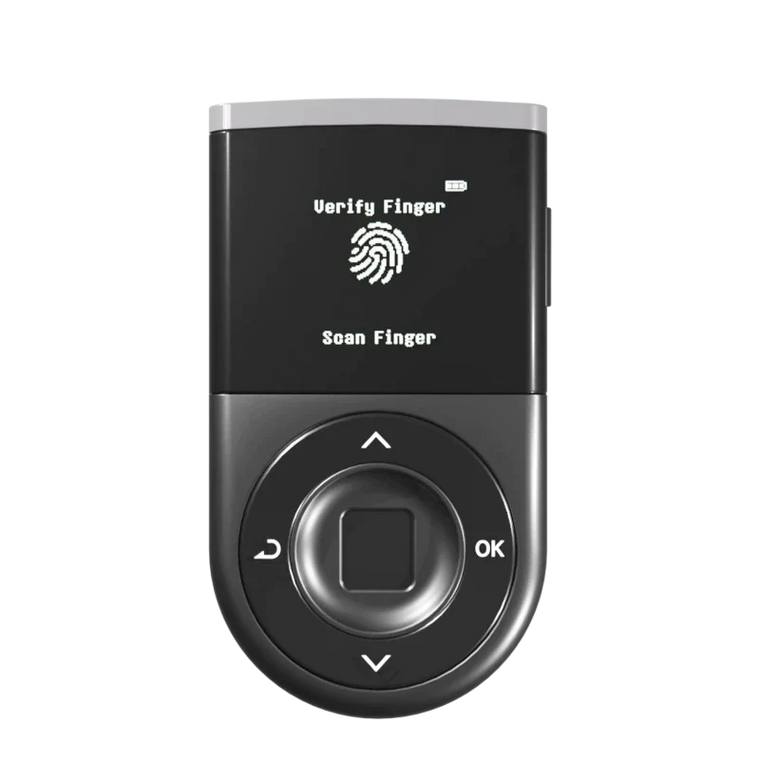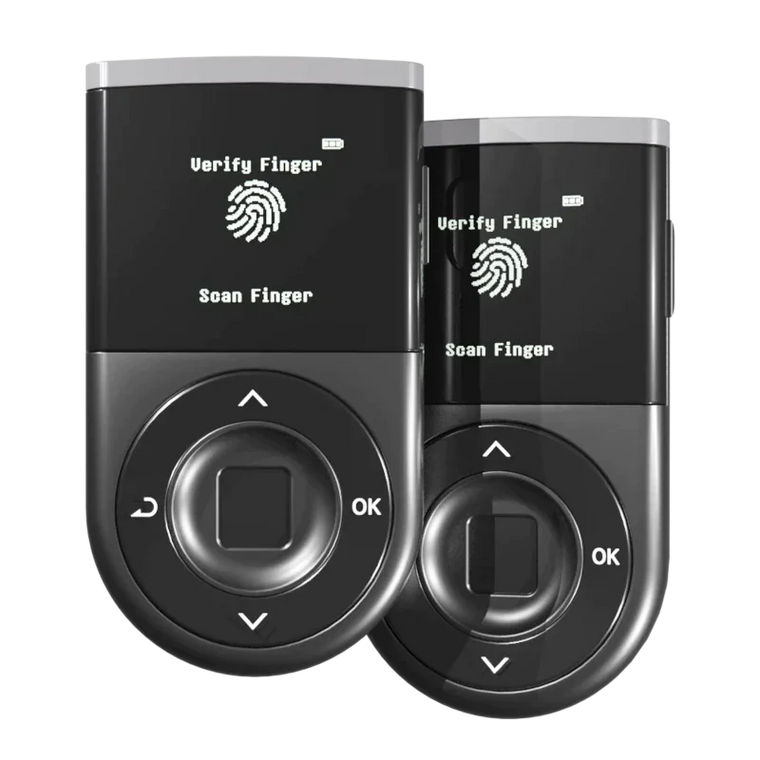






Key Answer: If your deposit doesn’t show up or your wallet connection feels unstable, the cause is usually one of these: the coin account isn’t added, the network doesn’t match / isn’t supported, your wallet firmware/app is outdated, or the app ↔ Biometric Wallet sync (Bluetooth) needs a reset. Follow the checklist below to fix most cases quickly.
Before You Start (Assumptions)
- This guide assumes you already completed initial setup (fingerprint registration, PIN setup, and recovery phrase backup).
- We explain steps based on Biometric Wallet + D’CENT mobile app. (If you use app-only mode, the same principles apply, but some screens may look different.)
1. “I Received Coins, But They Don’t Show in My Wallet”

(A) You haven’t added the coin account yet
D’CENT requires you to manually add the account (coin) before the balance appears.
How to create a coin account: Add a coin account in the D’CENT app
(B) Your Biometric Wallet firmware is not up to date
D’CENT Biometric Wallet firmware updates are released to add new coins and fix bugs. You don’t need to be on the latest version at all times, but if you want to store a newly supported coin, updating firmware may be required.
How to update firmware: Update D’CENT Biometric Wallet firmware

1-1. Quick Checklist (5-minute self-check)
Step 1. Confirm coin + network support
- In the sending platform (exchange/other wallet), confirm:
- The coin name
- The network used (e.g., Ethereum, BSC, Tron, Kaia, etc.)
- 💡 Check whether D’CENT supports that exact coin and network.
- 💡 Important: Even if the coin name is the same, different networks (ERC20 vs BEP20 vs TRC20) mean a different route.
- If the network is not supported, the app cannot display the balance.
📌 Tip: Many “same coin name but not showing” cases come from selecting the wrong network during withdrawal.
Step 2. Make sure the coin account exists in your wallet
- Open the D’CENT app and go to My Wallet.
- Tap + (Add account) in the top-right corner and search for the coin (e.g., ADA, HBAR, token symbol).
- If it’s missing, add it. Then wait briefly or pull down to refresh.
👤 Common scenario:
“I deleted an account and my coins disappeared.” → In most cases, only the account view was removed. Your assets remain on-chain. Adding the same account again usually shows the original balance.
Step 3. Re-sync the app ↔ Biometric Wallet
With a Biometric Wallet, your assets exist on-chain, and the app shows them through communication with the wallet. If Bluetooth sync is unstable, balances may appear delayed or as 0.
- Turn on the Biometric Wallet and unlock it (PIN or fingerprint).
- Open the D’CENT app and confirm the connected wallet is your Biometric Wallet.
- Enable Bluetooth and tap Allow on any connection prompts.
- Pull down to refresh on My Wallet.
If the app has been running in the background for a long time or Bluetooth is “stuck,” try: close the app completely → reopen → power-cycle the wallet (off/on). This resolves many sync cases.
2. Biometric Wallet ↔ App Connection Issues (Bluetooth)

After setup, the most repeated issue in real use is connection trouble—“my Biometric Wallet won’t connect” or “Bluetooth keeps disconnecting.”
2-1. Understand the connection flow (simple model)
- Biometric Wallet: stores private keys and performs signing
- D’CENT mobile app: communicates with blockchains and displays balances/transaction history
- They communicate via Bluetooth
Most actions—checking balances, sending, and viewing NFTs—run on the flow:
App ↔ Biometric Wallet ↔ Blockchain
If the Bluetooth bridge becomes unstable, it can feel like “the wallet isn’t working.”
📱Android Bluetooth troubleshooting: Fix Android Bluetooth connection errors
📱Find the Bluetooth menu on iPhone: Where to find Bluetooth settings on iPhone
Quick Self-Check Checklist

I confirmed the exact network used for the transfer (ERC20/BEP20/TRC20, etc.).
I added the correct coin account in D’CENT (My Wallet → + Add account).
I checked whether my Biometric Wallet needs a firmware update (and updated if required).
I tapped Allow on Bluetooth prompts and re-tried app ↔ wallet syncing.
If it still fails, I followed the Android/iPhone troubleshooting guides above.